Before You Start
EmDash runs on Cloudflare Workers with D1 (database) and R2 (media storage). These services require a paid Cloudflare Workers plan — the free tier does not support the bindings EmDash needs. Make sure you have an active Workers Paid plan before proceeding.
What You Need
- A Cloudflare account with a Workers Paid plan
- Node.js 18+ installed locally
- Wrangler CLI (npm install -g wrangler)
- Basic familiarity with the terminal
Step 1: Create a New EmDash Project
Start by scaffolding a new EmDash site:
npm create emdash@latest my-site
cd my-site
npm install
This creates an Astro project pre-configured with the EmDash integration.
Step 2: Configure Cloudflare Resources
EmDash needs two Cloudflare resources: a D1 database for content and an R2 bucket for media uploads. Create them via Wrangler:
wrangler d1 create my-site-db
wrangler r2 bucket create my-site-media
Take note of the D1 database ID — you will need it for the configuration file.
Step 3: Configure wrangler.jsonc
Open wrangler.jsonc in your project and set the D1 and R2 bindings with the database name, database ID, and bucket name from Step 2.
Step 4: Set Up Authentication
EmDash needs an auth secret for secure sessions. Generate one:
npx emdash auth secret
Then set it as a Cloudflare secret:
wrangler secret put EMDASHAUTHSECRET
Paste the generated secret when prompted.
Step 5: Local Development
Before your first deploy, initialize the database with your schema and optional demo content:
npx emdash dev
This runs migrations, applies the seed file, and starts a local dev server. Verify everything works at http://localhost:4321.
Step 6: Build and Deploy
When you are happy with your local setup:
npm run build
npm run deploy
Wrangler will upload your site to Cloudflare Workers. The first deploy also runs database migrations on your remote D1 instance.
Step 7: Access the Admin Panel
Once deployed, visit your site URL followed by /_emdash/admin to access the content management panel. From here you can create posts, upload media, manage menus, and configure site settings.
Important Notes
- Paid plan required — Cloudflare free tier does not support the D1 and R2 bindings that EmDash depends on. You need at least the Workers Paid plan ($5/month at the time of writing).
- Custom domains — You can add a custom domain through the Cloudflare dashboard under Workers, your site, Settings, then Domains.
- Environment variables — For production, always use wrangler secret put for sensitive values. Never commit secrets to your repository.
- Backups — Use npx emdash export-seed --with-content to export your entire site as a portable seed file.
Summary
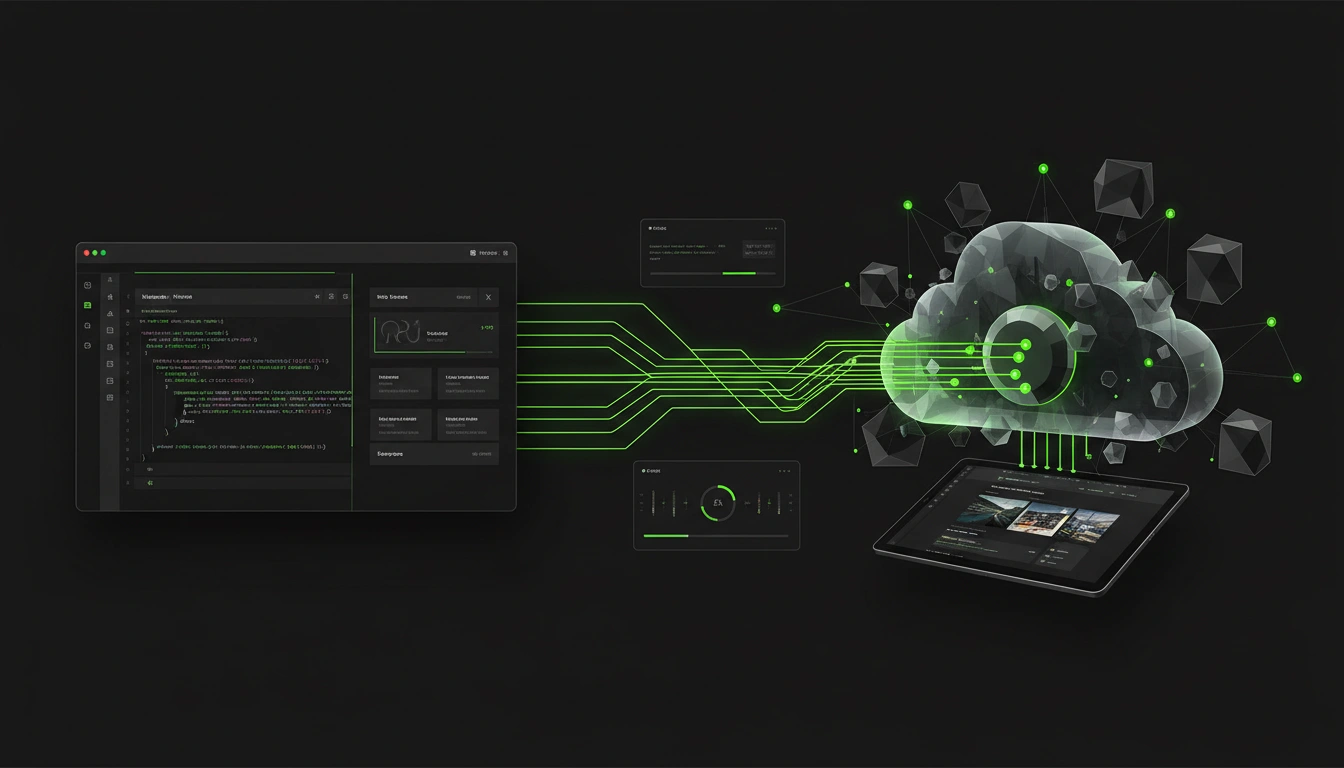
EmDash on Cloudflare gives you a fast, globally distributed CMS with a built-in admin UI, all running at the edge. The setup takes about 15 minutes once you have your paid Cloudflare account ready.